Parquet Files

Runtime masks fields in Parquet files using Spark SQL expressions to locate, filter, and transform specific columns. This distributed SQL engine efficiently handles large-scale data, enabling conditional logic and complex transformations for flexible masking.
Creating an Application
To configure an application, click the "Install Application" button. This will open a new page where you can either select an existing application or create one from scratch. Assuming this is your first file masking application, click the "Create a New Application" button to open the configuration page:
File Pattern
The file pattern is used to specify which files should be masked by the application. This pattern tells Runtime how to locate the target files in the file system or data source.
You can use the following approaches when defining your pattern:
Exact file names: Use the full file name if it’s always the same.
Example: CUSTOMERS_10k.parquet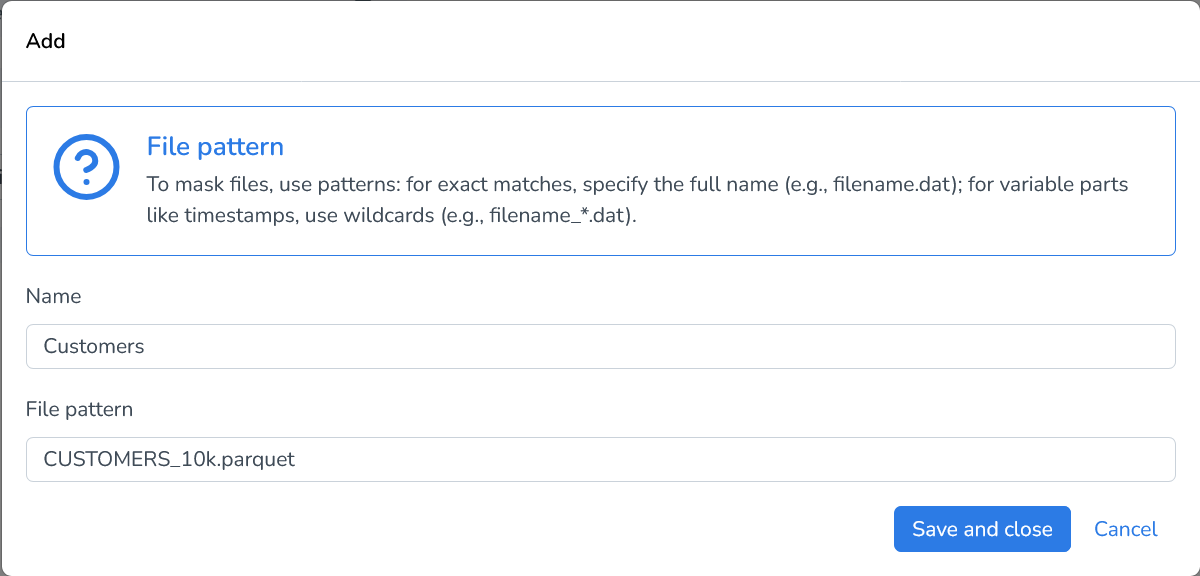
Wildcard patterns: Use wildcards to match files with dynamic elements, such as timestamps, sequence numbers, or environment identifiers.
Example: CUSTOMERS_*.parquet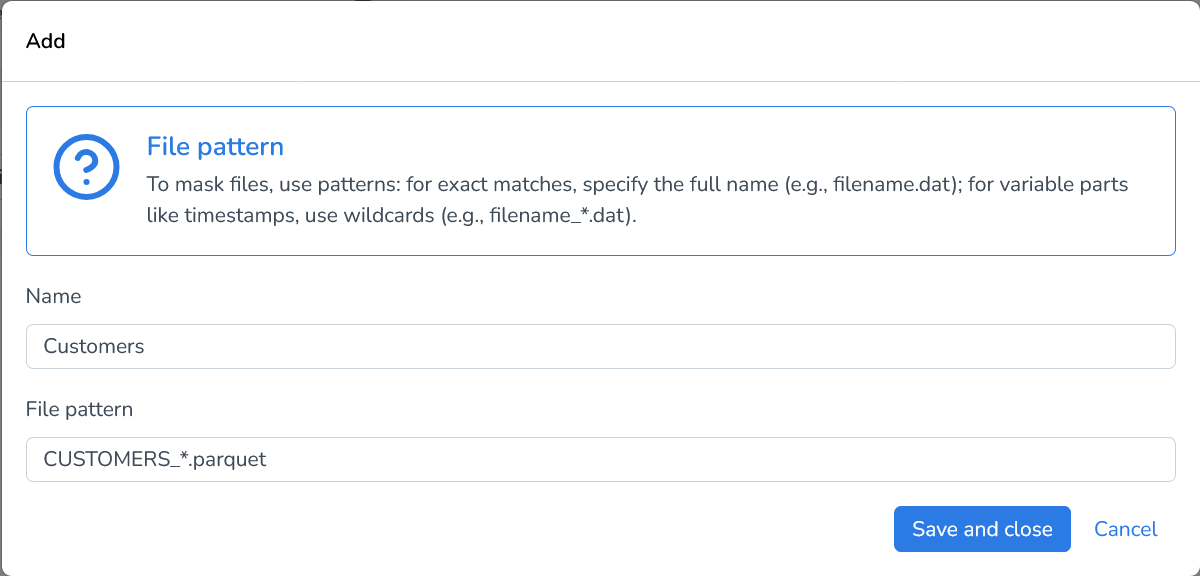
Wildcards allow flexibility in identifying files without needing to update the application for every filename change.
Tip: Ensure your pattern is specific enough to avoid unintentionally matching unrelated files, especially in directories containing multiple file types or data sources.
Adding Masking Functions
We’ll start with a simple case that masks the first name in our demo parquet file. A snippet from the original file:
{"CUSTOMER_ID":40,"LOGICAL_KEY":"fsTTbIfqgHsiKSfkyIsZzjHTR","TITLE":null,"FIRST_NAME":"Shon","LAST_NAME":"Mcdougall","LAST_NAME_UPPER":"MCDOUGALL","PARTNER_NAME":"Latrisha","FULL_LAST_NAME":"Stormy Kovacs","COMPANY":"Abercrombie & Fitch","BANK":"NL26DCKV0000000041","EMAIL":" Sulaimanisaurus@datprof.com","SALARY_YEAR":4853,"GENDER":"M","DATE_OF_BIRTH":1788195661000,"TYPE":"Fuchsia (Crayola)"}
{"CUSTOMER_ID":41,"LOGICAL_KEY":"oQLIqVppKCVzkVHTuIgWJIXpi","TITLE":null,"FIRST_NAME":"Alfonso","LAST_NAME":"Moorhead","LAST_NAME_UPPER":"MOORHEAD","PARTNER_NAME":"Man","FULL_LAST_NAME":"Madie Crotts","COMPANY":"Boston Properties","BANK":"NL42THOV0000000042","EMAIL":" Bihariosaurus@datprof.com","SALARY_YEAR":3047,"GENDER":"F","DATE_OF_BIRTH":1969032871000,"TYPE":"Blue"}
{"CUSTOMER_ID":42,"LOGICAL_KEY":"LtSoKozhstCuhupfUBJRrceho","TITLE":null,"FIRST_NAME":"Silas","LAST_NAME":"Ling","LAST_NAME_UPPER":"LING","PARTNER_NAME":"Lemuel","FULL_LAST_NAME":"Hwa Yin","COMPANY":"Vornado Realty Trust","BANK":"NL98LYPD0000000043","EMAIL":" Pachysuchus@datprof.com","SALARY_YEAR":3004,"GENDER":"F","DATE_OF_BIRTH":1308348247000,"TYPE":"Persian Red"}
{"CUSTOMER_ID":43,"LOGICAL_KEY":"QTrEjZHBHcfSVvpZhzRcQAdKI","TITLE":null,"FIRST_NAME":"John","LAST_NAME":"Jenner","LAST_NAME_UPPER":"JENNER","PARTNER_NAME":"Marcellus","FULL_LAST_NAME":"Dirk Sturtevant","COMPANY":"Teradata","BANK":"NL15PDBI0000000044","EMAIL":" Micropachycephalosaurus@datprof.com","SALARY_YEAR":4189,"GENDER":"M","DATE_OF_BIRTH":2000927892000,"TYPE":"Unmellow Yellow"}
{"CUSTOMER_ID":44,"LOGICAL_KEY":"WTzyTqJMhBGeOhfckriQmeNIf","TITLE":null,"FIRST_NAME":"Freddie","LAST_NAME":"Scholz","LAST_NAME_UPPER":"SCHOLZ","PARTNER_NAME":"Reuben","FULL_LAST_NAME":"Trang Westerfield","COMPANY":"Sprouts Farmers Market","BANK":"NL85QERV0000000045","EMAIL":" Sinotyrannus@datprof.com","SALARY_YEAR":2054,"GENDER":"F","DATE_OF_BIRTH":1740578492000,"TYPE":"Dark Brown"}
Click Add Masking Function
Select the function First name (male) generator
Enter the column(s) to be masked,
FIRST_NAMEin our case
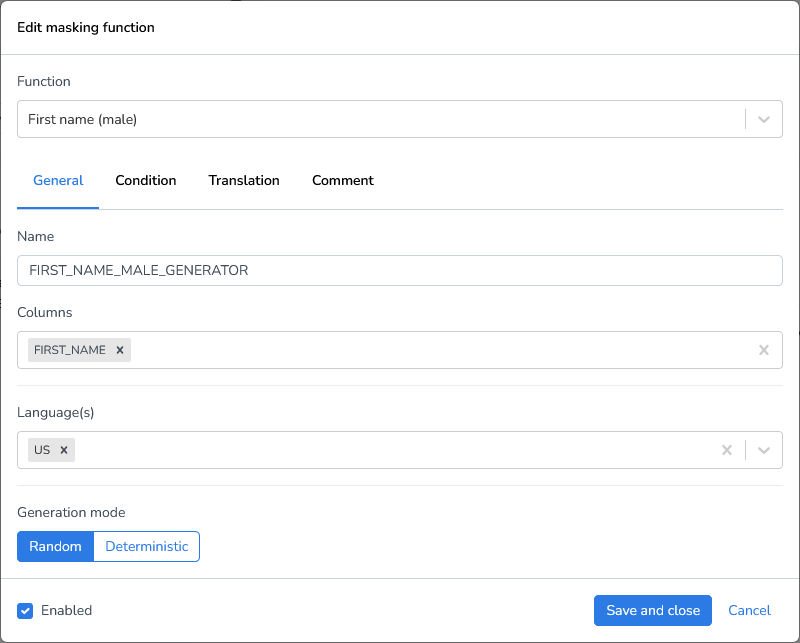
Result:
{"CUSTOMER_ID":40,"LOGICAL_KEY":"fsTTbIfqgHsiKSfkyIsZzjHTR","TITLE":null,"FIRST_NAME":"Donnell","LAST_NAME":"Mcdougall","LAST_NAME_UPPER":"MCDOUGALL","PARTNER_NAME":"Latrisha","FULL_LAST_NAME":"Stormy Kovacs","COMPANY":"Abercrombie & Fitch","BANK":"NL26DCKV0000000041","EMAIL":" Sulaimanisaurus@datprof.com","SALARY_YEAR":4853,"GENDER":"M","DATE_OF_BIRTH":1788195661000,"TYPE":"Fuchsia (Crayola)"}
{"CUSTOMER_ID":41,"LOGICAL_KEY":"oQLIqVppKCVzkVHTuIgWJIXpi","TITLE":null,"FIRST_NAME":"Cruz","LAST_NAME":"Moorhead","LAST_NAME_UPPER":"MOORHEAD","PARTNER_NAME":"Man","FULL_LAST_NAME":"Madie Crotts","COMPANY":"Boston Properties","BANK":"NL42THOV0000000042","EMAIL":" Bihariosaurus@datprof.com","SALARY_YEAR":3047,"GENDER":"F","DATE_OF_BIRTH":1969032871000,"TYPE":"Blue"}
{"CUSTOMER_ID":42,"LOGICAL_KEY":"LtSoKozhstCuhupfUBJRrceho","TITLE":null,"FIRST_NAME":"Coy","LAST_NAME":"Ling","LAST_NAME_UPPER":"LING","PARTNER_NAME":"Lemuel","FULL_LAST_NAME":"Hwa Yin","COMPANY":"Vornado Realty Trust","BANK":"NL98LYPD0000000043","EMAIL":" Pachysuchus@datprof.com","SALARY_YEAR":3004,"GENDER":"F","DATE_OF_BIRTH":1308348247000,"TYPE":"Persian Red"}
{"CUSTOMER_ID":43,"LOGICAL_KEY":"QTrEjZHBHcfSVvpZhzRcQAdKI","TITLE":null,"FIRST_NAME":"Herbert","LAST_NAME":"Jenner","LAST_NAME_UPPER":"JENNER","PARTNER_NAME":"Marcellus","FULL_LAST_NAME":"Dirk Sturtevant","COMPANY":"Teradata","BANK":"NL15PDBI0000000044","EMAIL":" Micropachycephalosaurus@datprof.com","SALARY_YEAR":4189,"GENDER":"M","DATE_OF_BIRTH":2000927892000,"TYPE":"Unmellow Yellow"}
{"CUSTOMER_ID":44,"LOGICAL_KEY":"WTzyTqJMhBGeOhfckriQmeNIf","TITLE":null,"FIRST_NAME":"Mohamed","LAST_NAME":"Scholz","LAST_NAME_UPPER":"SCHOLZ","PARTNER_NAME":"Reuben","FULL_LAST_NAME":"Trang Westerfield","COMPANY":"Sprouts Farmers Market","BANK":"NL85QERV0000000045","EMAIL":" Sinotyrannus@datprof.com","SALARY_YEAR":2054,"GENDER":"F","DATE_OF_BIRTH":1740578492000,"TYPE":"Dark Brown"}
Conditional Masking
Sometimes you only want to mask fields under certain conditions. For this example we’ll change the first name generator to a male first name generator and only mask when the gender is male.
When specifying a condition in a masking rule or transformation, only include the conditional expression itself, do not include SQL keywords such as WHERE.
Notes
Conditions follow standard SQL comparison rules.
Field names must match the dataset schema.
String values must be enclosed in single quotes (
').Do not include trailing semicolons (
;).
We’ll only be masking the first names if the “GENDER” column is male (M).
Edit the First name male generator
Go to the Condition tab
Enter a conditional expression without the where -clause
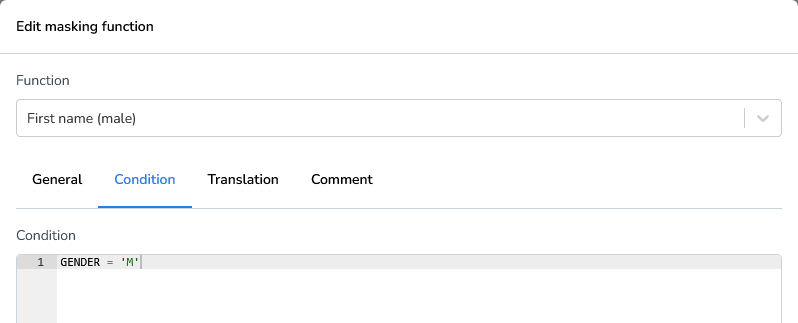
Result:
{"CUSTOMER_ID":40,"LOGICAL_KEY":"fsTTbIfqgHsiKSfkyIsZzjHTR","TITLE":null,"FIRST_NAME":"Donnell","LAST_NAME":"Mcdougall","LAST_NAME_UPPER":"MCDOUGALL","PARTNER_NAME":"Latrisha","FULL_LAST_NAME":"Stormy Kovacs","COMPANY":"Abercrombie & Fitch","BANK":"NL26DCKV0000000041","EMAIL":" Sulaimanisaurus@datprof.com","SALARY_YEAR":4853,"GENDER":"M","DATE_OF_BIRTH":1788195661000,"TYPE":"Fuchsia (Crayola)"}
{"CUSTOMER_ID":41,"LOGICAL_KEY":"oQLIqVppKCVzkVHTuIgWJIXpi","TITLE":null,"FIRST_NAME":"Alfonso","LAST_NAME":"Moorhead","LAST_NAME_UPPER":"MOORHEAD","PARTNER_NAME":"Man","FULL_LAST_NAME":"Madie Crotts","COMPANY":"Boston Properties","BANK":"NL42THOV0000000042","EMAIL":" Bihariosaurus@datprof.com","SALARY_YEAR":3047,"GENDER":"F","DATE_OF_BIRTH":1969032871000,"TYPE":"Blue"}
{"CUSTOMER_ID":42,"LOGICAL_KEY":"LtSoKozhstCuhupfUBJRrceho","TITLE":null,"FIRST_NAME":"Silas","LAST_NAME":"Ling","LAST_NAME_UPPER":"LING","PARTNER_NAME":"Lemuel","FULL_LAST_NAME":"Hwa Yin","COMPANY":"Vornado Realty Trust","BANK":"NL98LYPD0000000043","EMAIL":" Pachysuchus@datprof.com","SALARY_YEAR":3004,"GENDER":"F","DATE_OF_BIRTH":1308348247000,"TYPE":"Persian Red"}
{"CUSTOMER_ID":43,"LOGICAL_KEY":"QTrEjZHBHcfSVvpZhzRcQAdKI","TITLE":null,"FIRST_NAME":"Herbert","LAST_NAME":"Jenner","LAST_NAME_UPPER":"JENNER","PARTNER_NAME":"Marcellus","FULL_LAST_NAME":"Dirk Sturtevant","COMPANY":"Teradata","BANK":"NL15PDBI0000000044","EMAIL":" Micropachycephalosaurus@datprof.com","SALARY_YEAR":4189,"GENDER":"M","DATE_OF_BIRTH":2000927892000,"TYPE":"Unmellow Yellow"}
{"CUSTOMER_ID":44,"LOGICAL_KEY":"WTzyTqJMhBGeOhfckriQmeNIf","TITLE":null,"FIRST_NAME":"Freddie","LAST_NAME":"Scholz","LAST_NAME_UPPER":"SCHOLZ","PARTNER_NAME":"Reuben","FULL_LAST_NAME":"Trang Westerfield","COMPANY":"Sprouts Farmers Market","BANK":"NL85QERV0000000045","EMAIL":" Sinotyrannus@datprof.com","SALARY_YEAR":2054,"GENDER":"F","DATE_OF_BIRTH":1740578492000,"TYPE":"Dark Brown"}
Custom Expressions
The 'Custom Expression' is a flexible function that allows you to use any database platform function to manipulate data in the selected column. In this demonstration, we'll use the newly masked first names and last names to generate a corresponding email address.
Enter a (Spark) SQL expression that resolves to your desired value.
(e.g. FIRST_NAME || LAST_NAME )
Start by adding a Custom expression masking function
Enter the column(s), we’ll use the EMAIL column
Provide the expression:
lower(FIRST_NAME || '.' || LAST_NAME || '@datprof.com')
Result:
{"CUSTOMER_ID":40,"LOGICAL_KEY":"fsTTbIfqgHsiKSfkyIsZzjHTR","TITLE":null,"FIRST_NAME":"Donnell","LAST_NAME":"Mcdougall","LAST_NAME_UPPER":"MCDOUGALL","PARTNER_NAME":"Latrisha","FULL_LAST_NAME":"Stormy Kovacs","COMPANY":"Abercrombie & Fitch","BANK":"NL26DCKV0000000041","EMAIL":"donnell.mcdougall@datprof.com","SALARY_YEAR":4853,"GENDER":"M","DATE_OF_BIRTH":1788195661000,"TYPE":"Fuchsia (Crayola)"}
{"CUSTOMER_ID":41,"LOGICAL_KEY":"oQLIqVppKCVzkVHTuIgWJIXpi","TITLE":null,"FIRST_NAME":"Alfonso","LAST_NAME":"Moorhead","LAST_NAME_UPPER":"MOORHEAD","PARTNER_NAME":"Man","FULL_LAST_NAME":"Madie Crotts","COMPANY":"Boston Properties","BANK":"NL42THOV0000000042","EMAIL":"alfonso.moorhead@datprof.com","SALARY_YEAR":3047,"GENDER":"F","DATE_OF_BIRTH":1969032871000,"TYPE":"Blue"}
{"CUSTOMER_ID":42,"LOGICAL_KEY":"LtSoKozhstCuhupfUBJRrceho","TITLE":null,"FIRST_NAME":"Silas","LAST_NAME":"Ling","LAST_NAME_UPPER":"LING","PARTNER_NAME":"Lemuel","FULL_LAST_NAME":"Hwa Yin","COMPANY":"Vornado Realty Trust","BANK":"NL98LYPD0000000043","EMAIL":"silas.ling@datprof.com","SALARY_YEAR":3004,"GENDER":"F","DATE_OF_BIRTH":1308348247000,"TYPE":"Persian Red"}
{"CUSTOMER_ID":43,"LOGICAL_KEY":"QTrEjZHBHcfSVvpZhzRcQAdKI","TITLE":null,"FIRST_NAME":"Herbert","LAST_NAME":"Jenner","LAST_NAME_UPPER":"JENNER","PARTNER_NAME":"Marcellus","FULL_LAST_NAME":"Dirk Sturtevant","COMPANY":"Teradata","BANK":"NL15PDBI0000000044","EMAIL":"herbert.jenner@datprof.com","SALARY_YEAR":4189,"GENDER":"M","DATE_OF_BIRTH":2000927892000,"TYPE":"Unmellow Yellow"}
{"CUSTOMER_ID":44,"LOGICAL_KEY":"WTzyTqJMhBGeOhfckriQmeNIf","TITLE":null,"FIRST_NAME":"Freddie","LAST_NAME":"Scholz","LAST_NAME_UPPER":"SCHOLZ","PARTNER_NAME":"Reuben","FULL_LAST_NAME":"Trang Westerfield","COMPANY":"Sprouts Farmers Market","BANK":"NL85QERV0000000045","EMAIL":"freddie.scholz@datprof.com","SALARY_YEAR":2054,"GENDER":"F","DATE_OF_BIRTH":1740578492000,"TYPE":"Dark Brown"}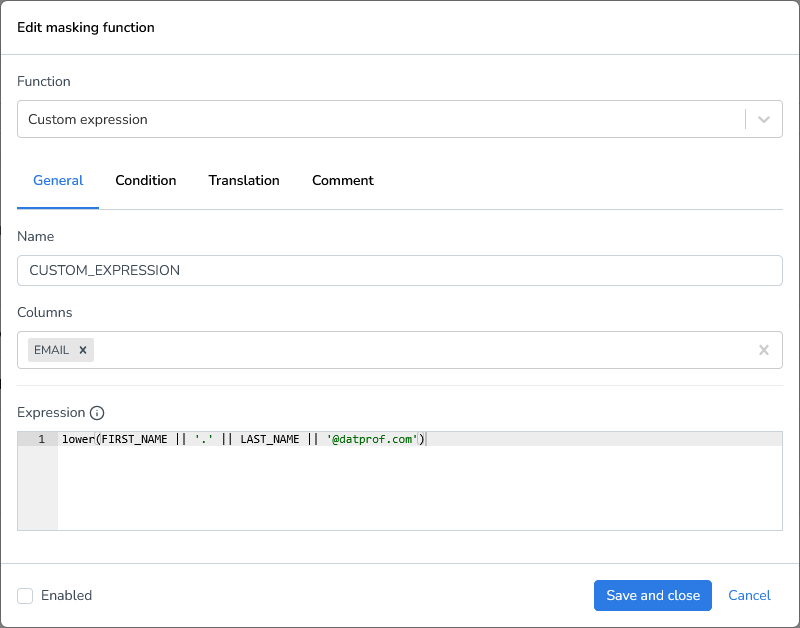
Dependencies
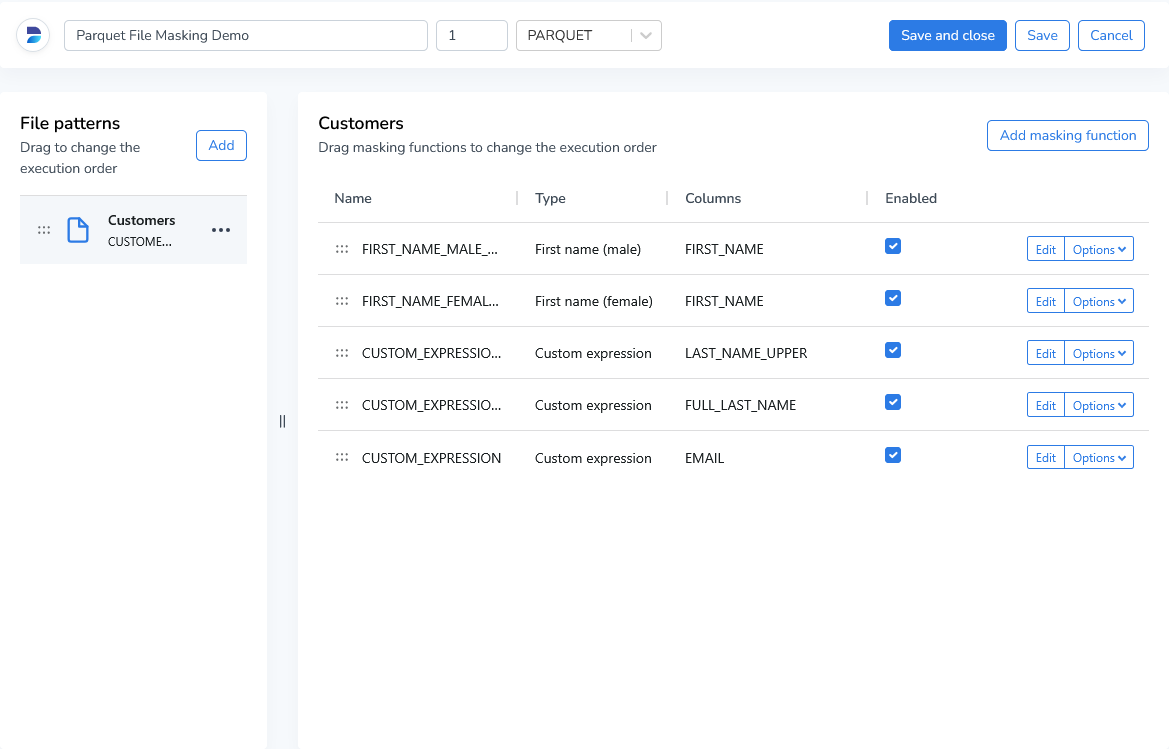
Unlike Privacy or Subset, Runtime does not have a dependency editor. Runtime executes functions sequentially from top to bottom. You can reorder functions by dragging them up or down using the drag indicator.
Value Lookup
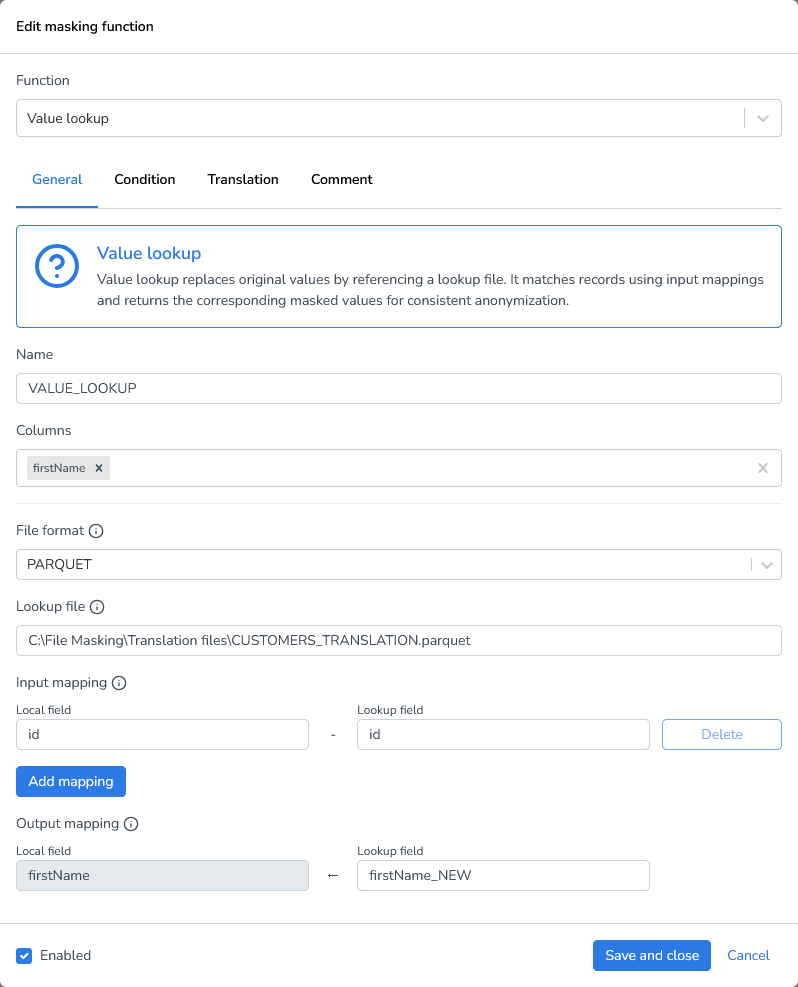
To replace values with predefined translations, you can use a lookup file. Lookup files allow you to map original values to their corresponding replacements without hardcoding the translations directly in your masking logic. This approach is particularly useful when you need to maintain consistent mappings across multiple columns or projects.
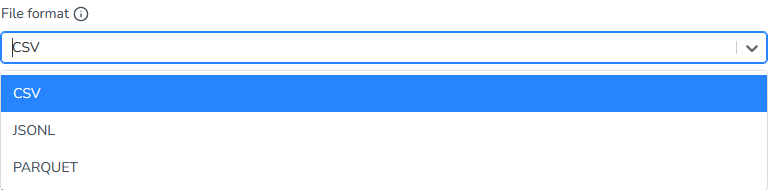
Lookup files support three common data formats:
CSV (Comma-Separated Values): A simple, widely-supported format ideal for straightforward key-value mappings
Parquet: A columnar storage format optimized for performance with large datasets
JSONL (JSON Lines): A flexible format where each line contains a separate JSON object, useful for complex or nested data structures
To create a lookup file, you can either configure it yourself or create a translation file once and use that file in subsequent runs. I’ve already created a lookup file for the firstName column and will use that file to mask another jsonl file.
Add a new masking function “Value Lookup”
Columns: Enter the column name,
LAST_NAMEin our exampleFile format: Select the file format of the lookup file (CSV, Parquet, or JSONL). We’ll use a CSV file.
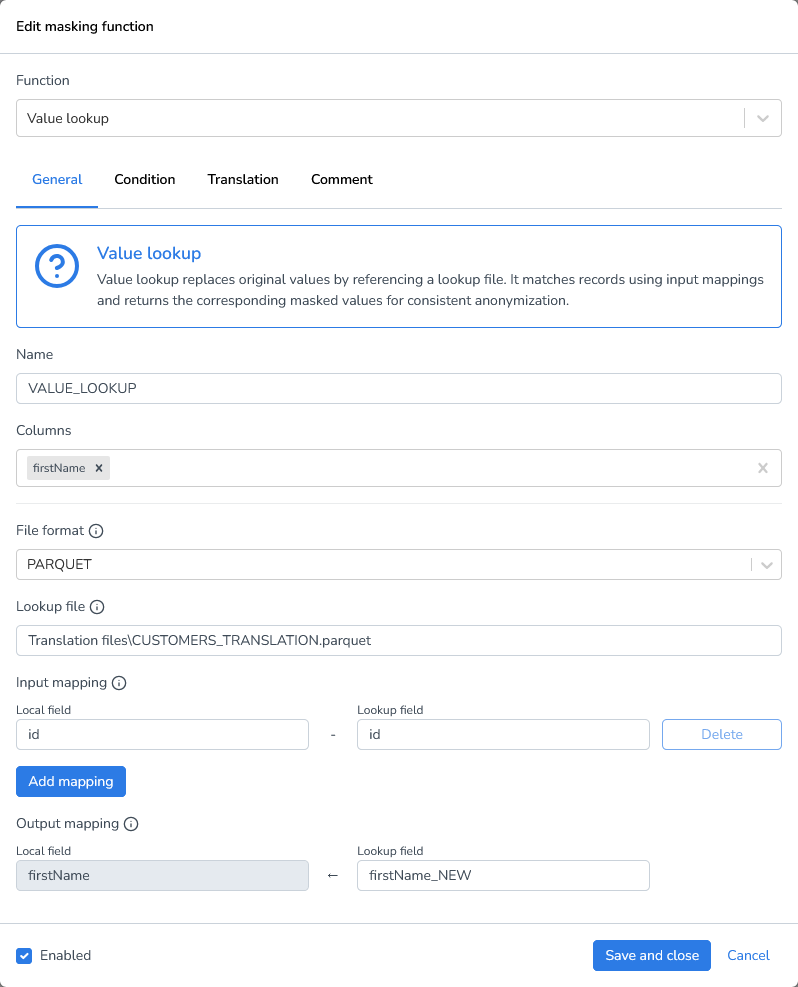
Lookup file: Use a full path to specify a local lookup file. Use a relative path to specify a file in the target environment.
Input mapping: Specify which field in your lookup file should be matched against your source column values. In this demo, we're matching against the
CUSTOMER_IDfieldOutput mapping: Specify which field in your lookup file contains the replacement values that will be used in the transformation, we’ll be using
LAST_NAMEas the local field andLAST_NAME_NEWas the Lookup field
Local/Network files: use full (absolute) file paths to ensure the system can correctly locate the file, regardless of the current working directory.
Example:C:\Data\Exports\file.csv\\Server\Shared\Backups\file.csv
Azure/AWS: Use relative paths within the configured storage container, bucket, or root directory. The base location is defined in the cloud storage configuration, so only the path relative to that root is required.
Example:translation/file.csvbackups/2026/file.csv