CSV Files

Runtime masks fields in CSV files using Spark SQL expressions to locate, filter, and transform specific columns. This distributed SQL engine efficiently handles large-scale data, enabling conditional logic and complex transformations for flexible masking.
CSV (Comma-Separated Values) files are widely used for data exchange and storage across systems. Runtime provides robust masking capabilities for CSV files, allowing you to protect sensitive data while maintaining file structure and usability.
Creating an Application
To configure an application, click the "Install Application" button. This will open a new page where you can either select an existing application or create one from scratch. Assuming this is your first file masking application, click the "Create a New Application" button to open the configuration page:
File Pattern
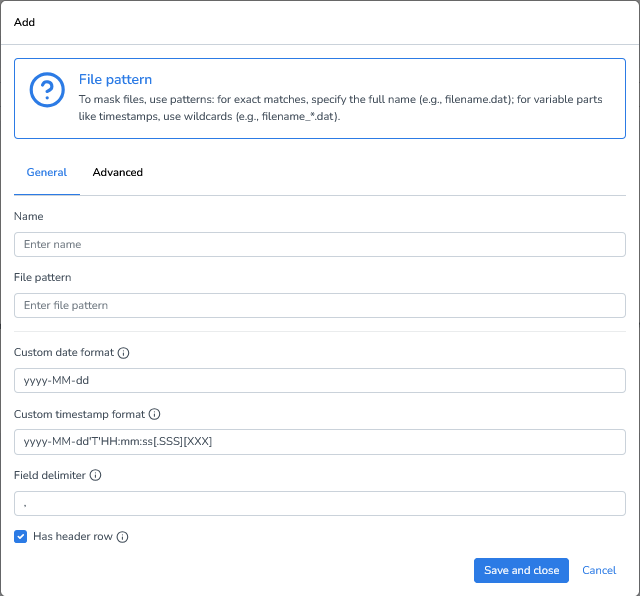
CSV files require some additional configuration. While some default settings are already pre-filled, you may need to adjust the following options depending on your file:
Exact file names: Use the full file name if it’s always the same.
Example: CUSTOMERS_10k.csvWildcard patterns: Use wildcards to match files with dynamic elements, such as timestamps, sequence numbers, or environment identifiers.
Example: CUSTOMERS_*.csvCustom date format: Define the date format used in the CSV so values are interpreted correctly.
Custom timestamp format: Specify how timestamps are written in the file.
Field delimiter: Choose the character (e.g., comma, semicolon, tab) that separates fields.
Has header row: Enable this option if the first row contains column names instead of data.
Advanced Settings
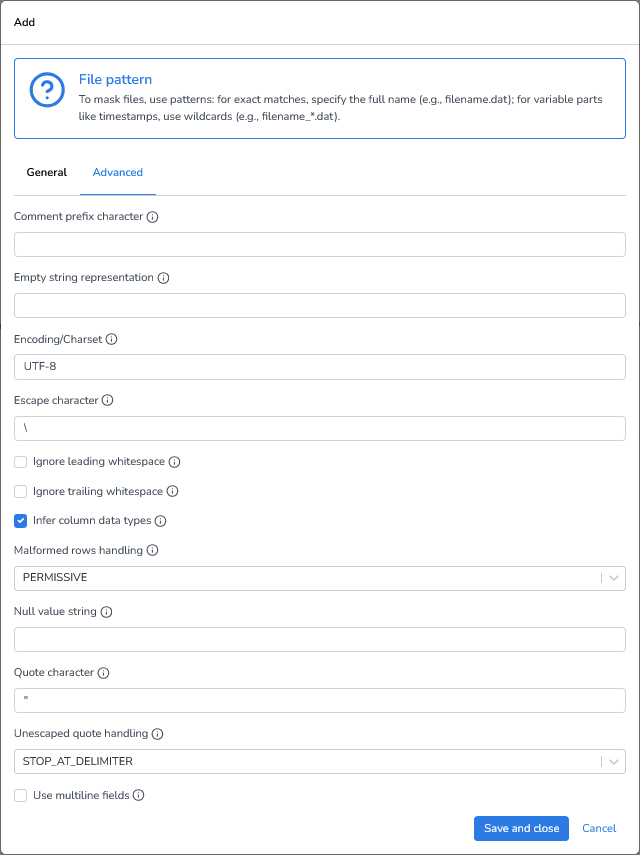
Comment prefix character: Lines starting with this character will be ignored. Leave blank to disable.
Empty string representation: Defines how empty values are represented in the file.
Encoding/Charset: Specifies the character encoding of the file. Common choices include UTF-8 and ISO-8859-1.
Escape character: Character used to escape quotes inside quoted fields. Default: \.
Ignore leading whitespace: Trims whitespace at the beginning of each field.
Ignore trailing whitespace: Trims whitespace at the end of each field.
Infer column data types: Automatically detects and assigns data types (e.g., integer, double, date) for each column.
Malformed rows handling: Defines how malformed rows should be handled:
PERMISSIVE (default): Loads all rows. Missing fields are set to null, and corrupt records are placed in _corrupt_record.
FAILFAST: Stops immediately if any malformed row is encountered.
DROPMALFORMED: Skips rows with schema mismatches without raising errors.
Null value string: Text string to be interpreted as null (e.g., null or NA).
Quote character: Character used for quoting field values, typically ".
Unescaped quote handling: Controls how the parser handles values with unescaped quotes:
STOP_AT_CLOSING_QUOTE: Treats unescaped quotes as part of a quoted value; parsing continues until a matching closing quote is found.
BACK_TO_DELIMITER: Treats the value as unquoted; collects characters until the next delimiter or line ending.
STOP_AT_DELIMITER: Similar to BACK_TO_DELIMITER, but stops at the first delimiter or line end.
SKIP_VALUE: Skips the problematic value and replaces it with the configured nullValue.
RAISE_ERROR: Immediately stops processing and raises an error.
Use multiline fields: Enables support for field values that span multiple lines (e.g., large text blobs wrapped in quotes).
Adding Masking Functions
We’ll be using a demo csv file that contains 10 thousand rows, containing the following columns and data:
#Header:
CUSTOMER_ID,"LOGICAL_KEY","TITLE","FIRST_NAME","LAST_NAME","LAST_NAME_UPPER","PARTNER_NAME","FULL_LAST_NAME","COMPANY","BANK","EMAIL","SALARY_YEAR","GENDER","DATE_OF_BIRTH","TYPE"#Sample data (first 5 rows after header)
40,fsTTbIfqgHsiKSfkyIsZzjHTR,,Shon,Mcdougall,MCDOUGALL,Latrisha,Stormy Kovacs,Abercrombie & Fitch,NL26DCKV0000000041, Sulaimanisaurus@datprof.com,4853,M,2026-08-31 19:01:01.000,Fuchsia (Crayola)
41,oQLIqVppKCVzkVHTuIgWJIXpi,,Alfonso,Moorhead,MOORHEAD,Man,Madie Crotts,Boston Properties,NL42THOV0000000042, Bihariosaurus@datprof.com,3047,F,2032-05-24 19:34:31.000,Blue
42,LtSoKozhstCuhupfUBJRrceho,,Silas,Ling,LING,Lemuel,Hwa Yin,Vornado Realty Trust,NL98LYPD0000000043, Pachysuchus@datprof.com,3004,F,2011-06-18 00:04:07.000,Persian Red
43,QTrEjZHBHcfSVvpZhzRcQAdKI,,John,Jenner,JENNER,Marcellus,Dirk Sturtevant,Teradata,NL15PDBI0000000044, Micropachycephalosaurus@datprof.com,4189,M,2033-05-28 23:18:12.000,Unmellow Yellow
44,WTzyTqJMhBGeOhfckriQmeNIf,,Freddie,Scholz,SCHOLZ,Reuben,Trang Westerfield,Sprouts Farmers Market,NL85QERV0000000045, Sinotyrannus@datprof.com,2054,F,2025-02-26 15:01:32.000,Dark BrownLet’s start with a simple case where we want to replace all last names inside our demo .csv file.
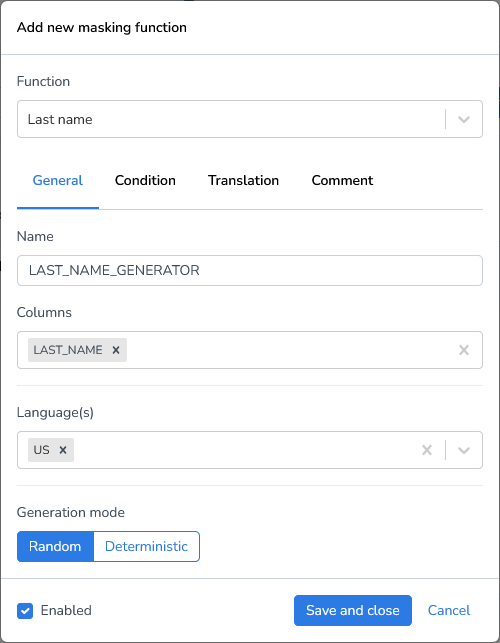
Click Add Masking Function.
Select the function Last name generator.
Enter the column, we’ll use the LAST_NAME column.
Select the language of the names to be generated.
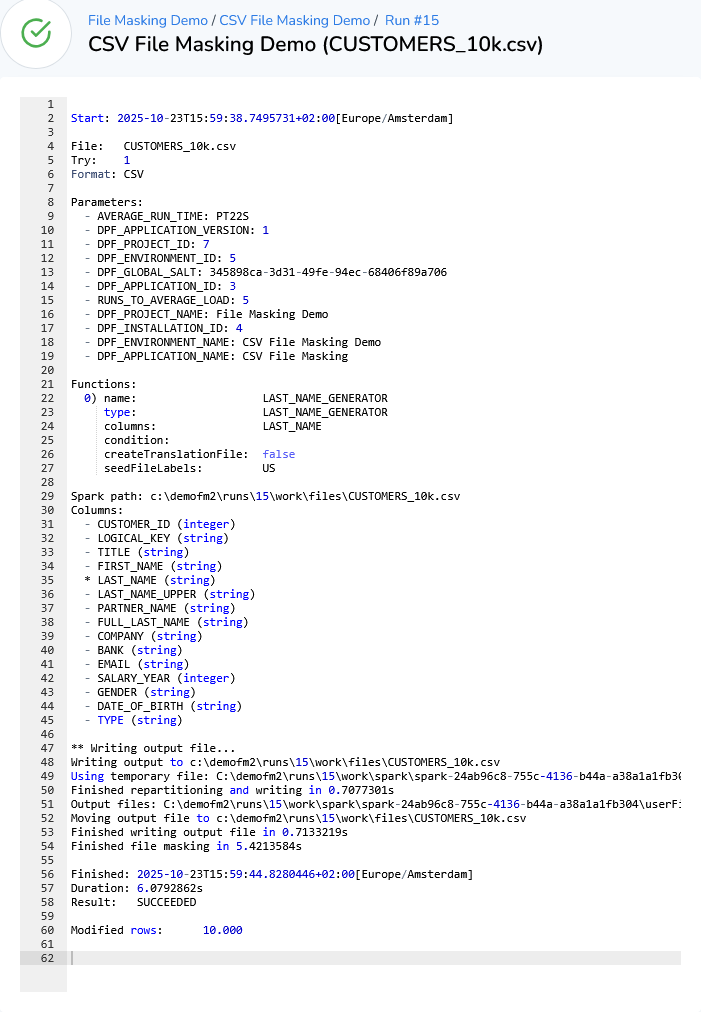
Result:
Conditional Masking
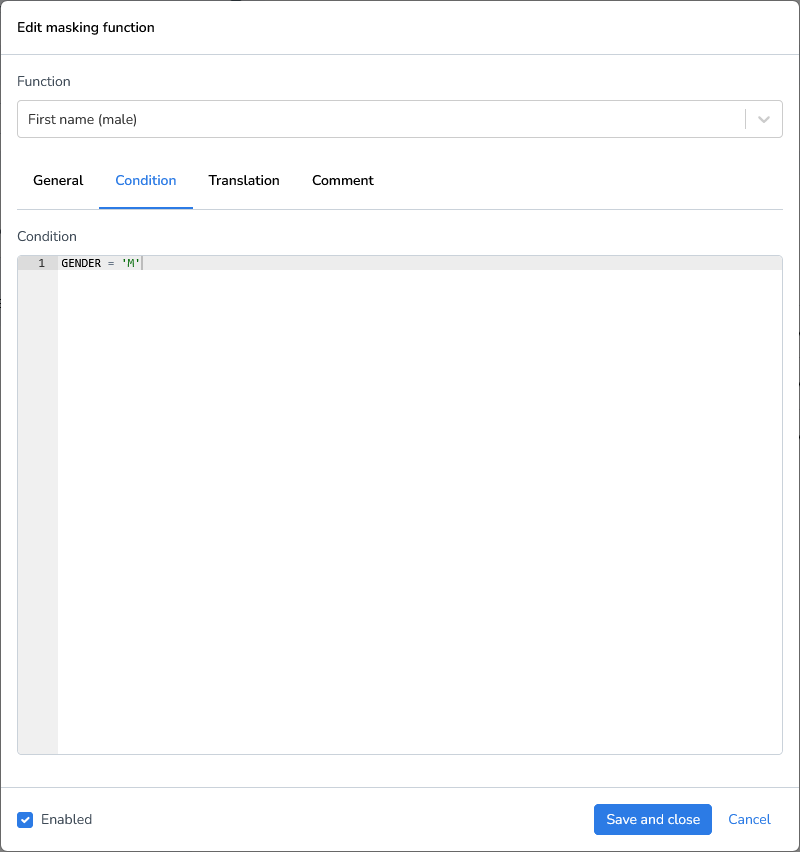
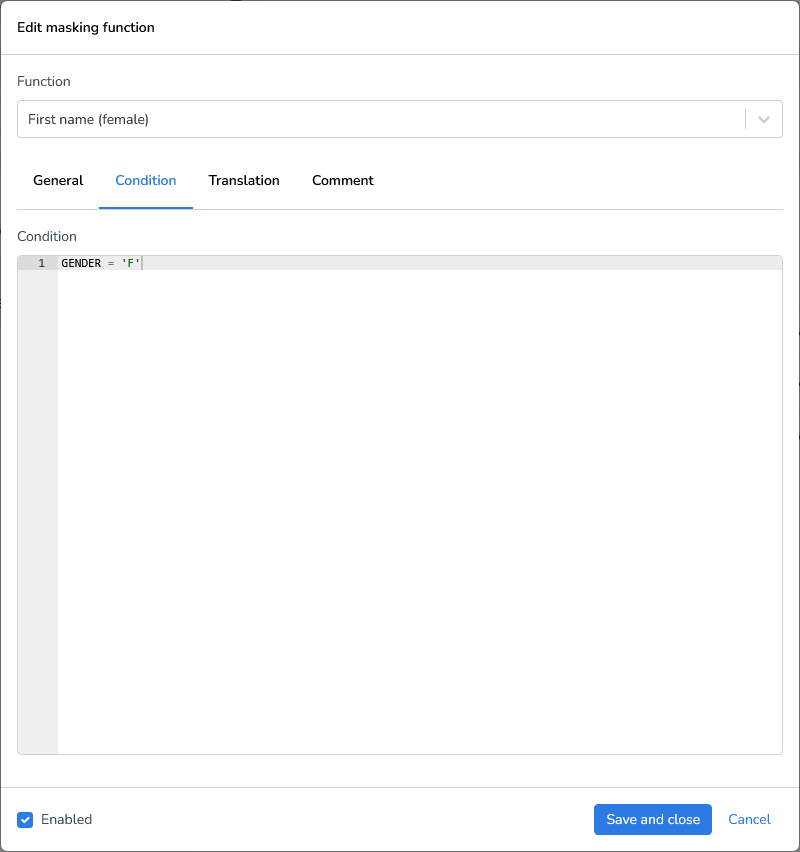
Sometimes you only want to mask fields under certain conditions. For this example we’ll use a male and female first name generator and only mask when the gender is male or female.
When specifying a condition in a masking rule or transformation, only include the conditional expression itself, do not include SQL keywords such as WHERE.
Notes
Conditions follow standard SQL comparison rules.
Field names must match the dataset schema.
String values must be enclosed in single quotes (
').Do not include trailing semicolons (
;).
Result:
40,fsTTbIfqgHsiKSfkyIsZzjHTR,,Donnell,Mcdougall,MCDOUGALL,Latrisha,Stormy Kovacs,Abercrombie & Fitch,NL26DCKV0000000041, Sulaimanisaurus@datprof.com,4853,M,2026-08-31 19:01:01.000,Fuchsia (Crayola)
41,oQLIqVppKCVzkVHTuIgWJIXpi,,Hasinath,Moorhead,MOORHEAD,Man,Madie Crotts,Boston Properties,NL42THOV0000000042, Bihariosaurus@datprof.com,3047,F,2032-05-24 19:34:31.000,Blue
42,LtSoKozhstCuhupfUBJRrceho,,Haniyeh,Ling,LING,Lemuel,Hwa Yin,Vornado Realty Trust,NL98LYPD0000000043, Pachysuchus@datprof.com,3004,F,2011-06-18 00:04:07.000,Persian Red
43,QTrEjZHBHcfSVvpZhzRcQAdKI,,Herbert,Jenner,JENNER,Marcellus,Dirk Sturtevant,Teradata,NL15PDBI0000000044, Micropachycephalosaurus@datprof.com,4189,M,2033-05-28 23:18:12.000,Unmellow Yellow
44,WTzyTqJMhBGeOhfckriQmeNIf,,Sultan,Scholz,SCHOLZ,Reuben,Trang Westerfield,Sprouts Farmers Market,NL85QERV0000000045, Sinotyrannus@datprof.com,2054,F,2025-02-26 15:01:32.000,Dark Brown
Custom Expressions
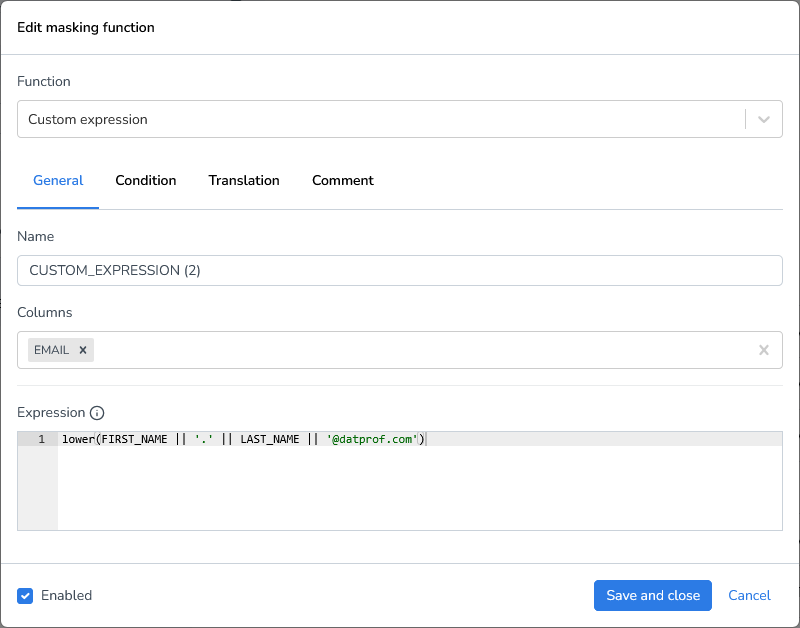
The 'Custom Expression' is a flexible function that allows you to use any database platform function to manipulate data in the selected column. In this demonstration, we'll use the newly masked first names and last names to generate a corresponding email address.
Enter a (Spark) SQL expression that resolves to your desired value.
(e.g. FIRST_NAME || LAST_NAME )
Start by adding a Custom expression masking function
Enter the column(s), we’ll use the EMAIL column
Provide the expression:
lower(FIRST_NAME || '.' || LAST_NAME || '@datprof.com')
Result:
40,fsTTbIfqgHsiKSfkyIsZzjHTR,,Donnell,Earnest,EARNEST,Latrisha,Earnest Latrisha,Abercrombie & Fitch,NL26DCKV0000000041,donnell.earnest@datprof.com,4853,M,2026-08-31 19:01:01.000,Fuchsia (Crayola)
41,oQLIqVppKCVzkVHTuIgWJIXpi,,Hasinath,Crandell,CRANDELL,Man,Crandell Man,Boston Properties,NL42THOV0000000042,hasinath.crandell@datprof.com,3047,F,2032-05-24 19:34:31.000,Blue
42,LtSoKozhstCuhupfUBJRrceho,,Haniyeh,Court,COURT,Lemuel,Court Lemuel,Vornado Realty Trust,NL98LYPD0000000043,haniyeh.court@datprof.com,3004,F,2011-06-18 00:04:07.000,Persian Red
43,QTrEjZHBHcfSVvpZhzRcQAdKI,,Herbert,Holloway,HOLLOWAY,Marcellus,Holloway Marcellus,Teradata,NL15PDBI0000000044,herbert.holloway@datprof.com,4189,M,2033-05-28 23:18:12.000,Unmellow Yellow
44,WTzyTqJMhBGeOhfckriQmeNIf,,Sultan,Patchell,PATCHELL,Reuben,Patchell Reuben,Sprouts Farmers Market,NL85QERV0000000045,sultan.patchell@datprof.com,2054,F,2025-02-26 15:01:32.000,Dark Brown
Dependencies
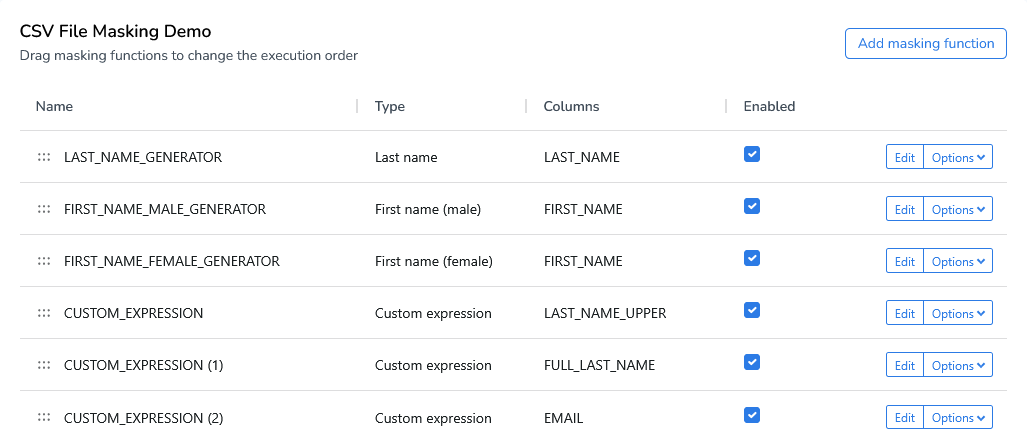
Unlike Privacy or Subset, Runtime does not have a dependency editor. Runtime executes functions sequentially from top to bottom. You can reorder functions by dragging them up or down using the drag indicator.
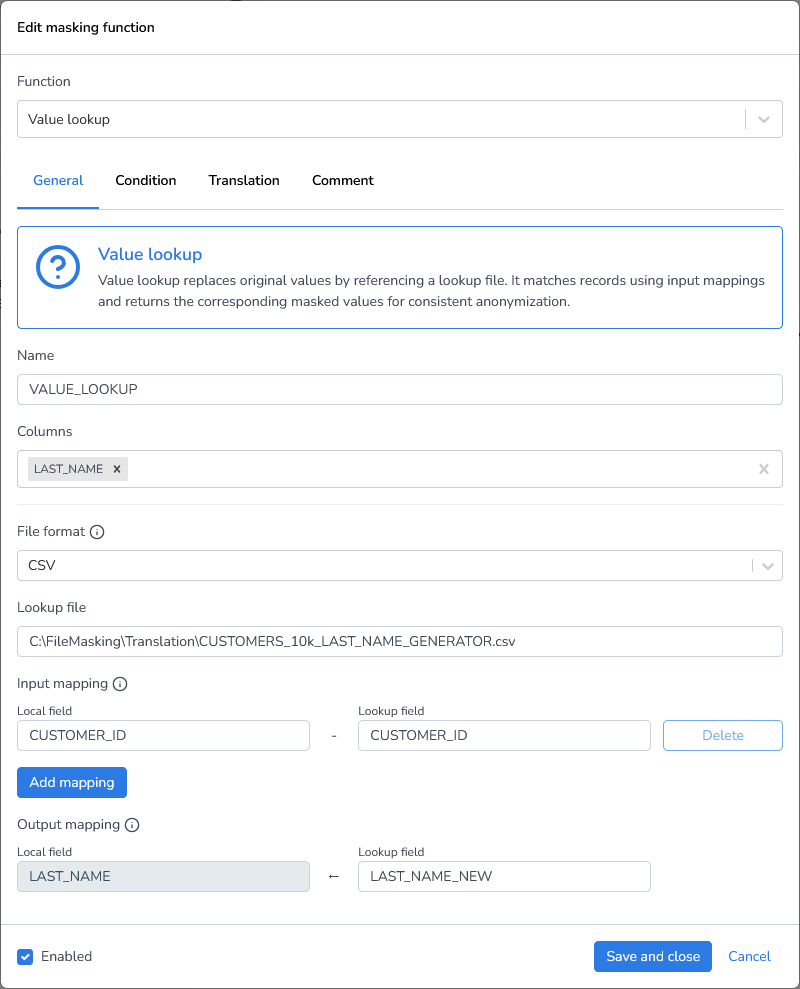
Value Lookup
To replace values with predefined translations, you can use a lookup file. Lookup files allow you to map original values to their corresponding replacements without hardcoding the translations directly in your masking logic. This approach is particularly useful when you need to maintain consistent mappings across multiple columns or projects.
Lookup files support three common data formats:
CSV (Comma-Separated Values): A simple, widely-supported format ideal for straightforward key-value mappings
Parquet: A columnar storage format optimized for performance with large datasets
JSONL (JSON Lines): A flexible format where each line contains a separate JSON object, useful for complex or nested data structures
To create a lookup file, you can either configure it yourself or create a translation file once and use that file in subsequent runs. I’ve already created a lookup file for the firstName column and will use that file to mask another jsonl file.
Add a new masking function “Value Lookup”
Columns: Enter the column name,
LAST_NAMEin our exampleFile format: Select the file format of the lookup file (CSV, Parquet, or JSONL). We’re using a CSV file.
Lookup file: Provide the complete file path to your lookup file
Input mapping: Specify which field in your lookup file should be matched against your source column values. In this demo, we're matching against the
CUSTOMER_IDfieldOutput mapping: Specify which field in your lookup file contains the replacement values that will be used in the transformation, we’ll be using
LAST_NAMEas the local field andLAST_NAME_NEWas the Lookup field