
Connect to the Gasware Database
When you created a new project, the first thing you will see is the Project settings view. In this section you manage the database connection. Also you can import and synchronize the meta data from database.
Now we will connect to the Gasware Training Database.
- Click Edit connection to open up the connection editor.
- Create a new connection with the following information found in the bottom left in the Gasware application.
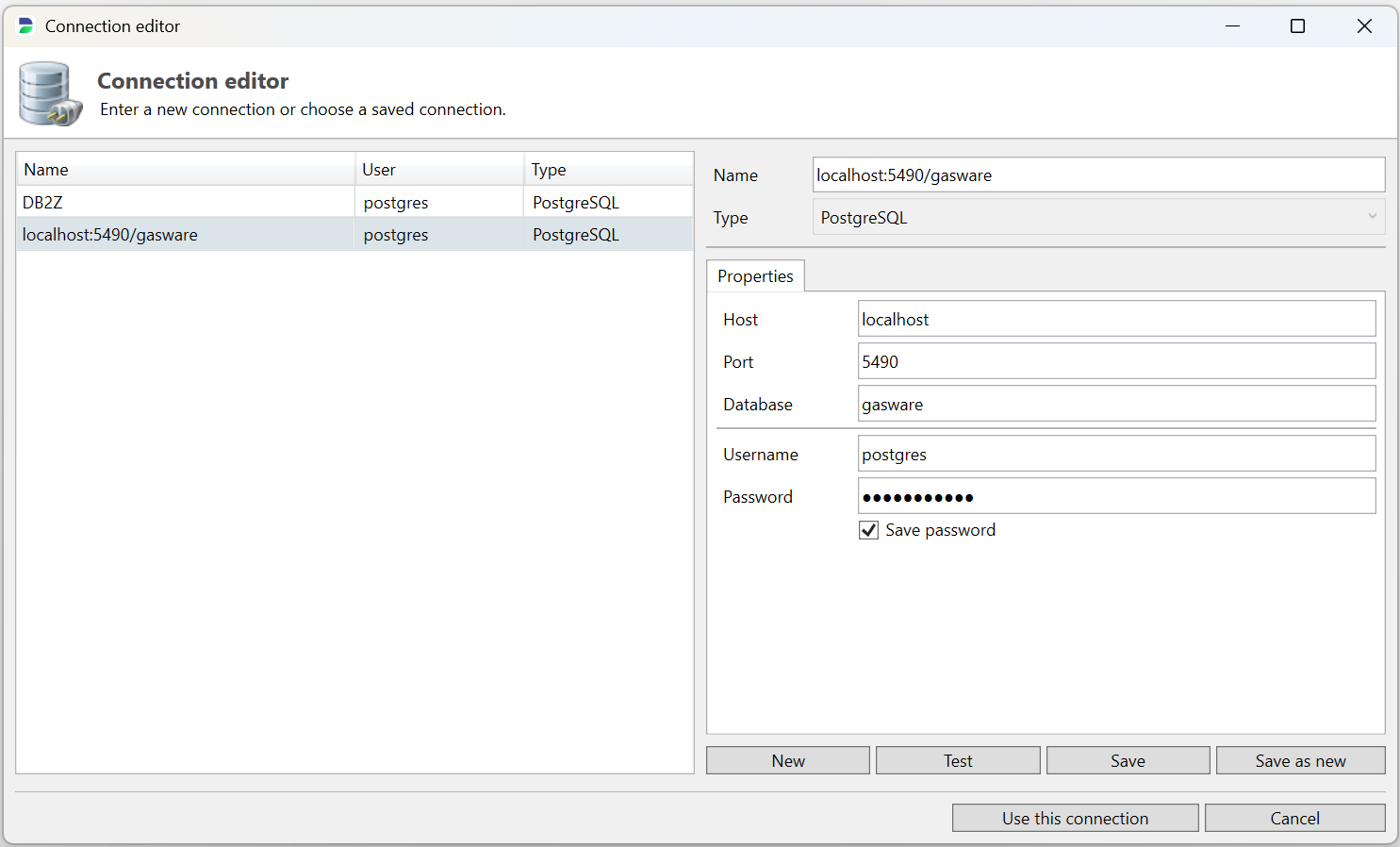
- Click the Test button
- If you get the "Connection attempt was successful" message, click Save.
- If you are getting a database error, please contact support@datprof.com
- Click Use this connection to select this connection and close the connection editor.

Warning
The chosen connection is not only used to import the meta data, but also to execute and deploy the template. So for future usage, make sure you don't use your connection to your production database!
If you get stuck, you can also watch an short video clip how to connect to the Gasware Database. The connection details may differ from your situation. Make the video fullscreen to get a better view.